Living Happy
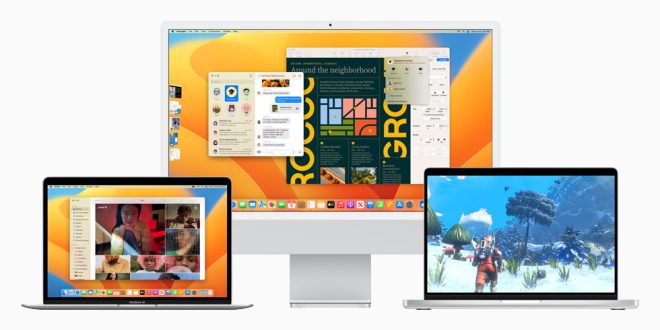
macOS Ventura arrived, bringing a host of powerful productivity tools and innovative continuity features designed to streamline your workflow and seamlessly connect your Mac with your other Apple devices. This update focuses on enhancing multitasking, communication, and overall efficiency, making your Mac experience more intuitive and productive than ever before. Let’s delve into the key features that make macOS Ventura a significant upgrade. Honestly, after using it for a bit, I’m wondering how I ever lived without some of these!
Stage Manager: A New Way to Multitask
What is Stage Manager?
Stage Manager is a groundbreaking feature, alright, it automatically organizes open windows, allowing you to focus on the task at hand without getting lost in a sea of applications. Ever feel like you’re drowning in tabs and windows? This might just be your life raft.
How to Use Stage Manager
Stage Manager groups your current application window front and center, and other open windows are neatly arranged on the side, making switching between tasks quick and easy. We’ll guide you through enabling and customizing Stage Manager to fit your personal workflow. I was a bit skeptical at first, but it really does declutter the desktop. You can find it in System Settings under “Desktop & Dock.” Give it a whirl; you might just love it.
Benefits of Stage Manager
This feature significantly reduces clutter and allows for quicker access to applications. You can also create groups of windows relevant to specific projects. Imagine having all your research papers neatly tucked away together… a dream come true for any student, right?
Continuity Camera: Using Your iPhone as a Webcam
Leveraging Your iPhone’s Superior Camera
Continuity Camera allows you to seamlessly use your iPhone as a webcam for your Mac, taking advantage of your iPhone’s high-quality camera system. Let’s be honest, those built-in webcams on Macs can be a bit… underwhelming. Finally, a solution!
How to Set Up Continuity Camera
The setup is incredibly simple. With both devices logged into the same Apple ID and Wi-Fi network, your Mac will automatically detect your iPhone as a camera option. It’s almost too easy! Make sure your iPhone is nearby and unlocked; otherwise, it might not pop up as an option.
Studio Light and Desk View
Continuity Camera also unlocks features like Studio Light, which intelligently illuminates your face while dimming the background, and Desk View, which shows a top-down view of your desk, perfect for sharing documents or tutorials. The Desk View is a game-changer for online teaching or showing off your latest Lego creation. I mean, who doesn’t have a Lego creation lying around?
Mail and Messages Enhancements
Unsend and Edit Features
macOS Ventura brings long-awaited features to Mail and Messages, including the ability to unsend and edit recently sent emails and messages. We’ve all been there: sending an email with a glaring typo or a message to the wrong person. Now you can (mostly) erase those mistakes from existence!
Improved Search
Mail’s search function has been revamped, providing more accurate and comprehensive results, allowing you to quickly find the information you need. Remember that one email you swore you saved but can never find? This might be the end of that struggle.
Collaboration Tools
Messages now makes collaboration easier than ever. You can easily invite others to collaborate on documents, presentations, spreadsheets, and more, and see updates right within the conversation. Think of it as a virtual office space, but without the awkward water cooler chats.
Spotlight Improvements
Enhanced Search Capabilities
Spotlight has been significantly improved, providing richer results, including live text recognition in images and quick actions like setting timers or creating new documents. It’s like having a super-powered search bar at your fingertips.
Quick Look Enhancements
The Quick Look feature allows you to preview files without opening them, and macOS Ventura expands this functionality to include actions like password copying and more. Talk about a time-saver! Copying passwords directly from Quick Look? Yes, please!
System Settings Redesign
A Streamlined Interface
The System Preferences app has been completely redesigned and renamed to System Settings, offering a cleaner and more intuitive interface inspired by iOS and iPadOS. It was about time, honestly. The old System Preferences felt like navigating a maze.
Easier Navigation
The new design makes it easier to find and adjust your system settings, improving the overall user experience. Now you can actually find what you’re looking for without wanting to throw your Mac out the window. I may be exaggerating… slightly.
So, macOS Ventura is a pretty packed update, wouldn’t you agree? It’s focused on making you more productive and connecting your Apple devices in a seamless way. From the multitasking magic of Stage Manager to the webcam upgrade with Continuity Camera, and the improvements in Mail, Messages, and Spotlight, it’s got quite a few tools to play with. Maybe give it a try and see how it boosts your workflow, or not! Either way, I hope you found this helpful! Let me know what you think about Ventura if you decide to upgrade!